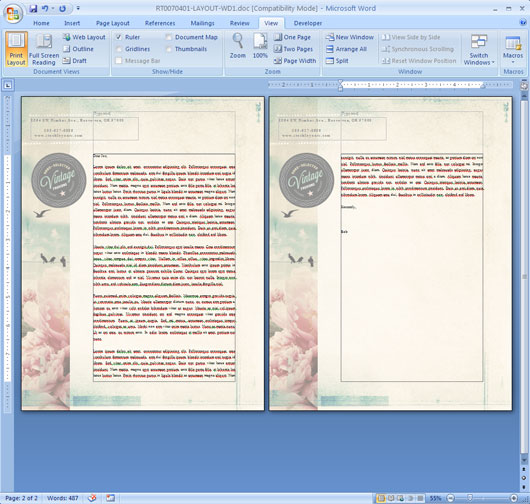
You may want your letterhead graphics to display on each page of your letterhead, report, or other document. When you continue to type on to a new page, Word will simply create a blank page. To repeat the graphics on the background of each new page, follow these steps using the Header & Footer feature in Microsoft Word:
1. Open a template or create your letterhead layout
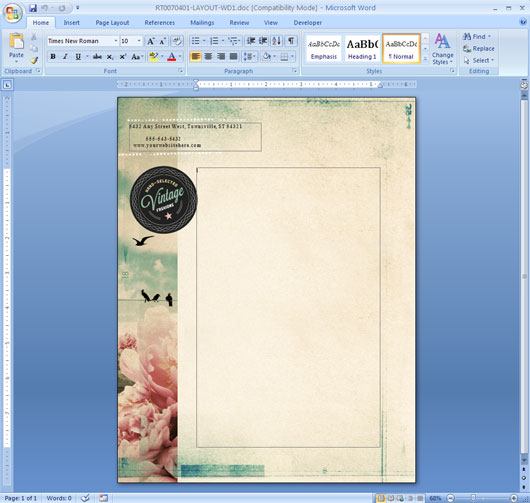
2. Edit the letterhead to your company’s specifications
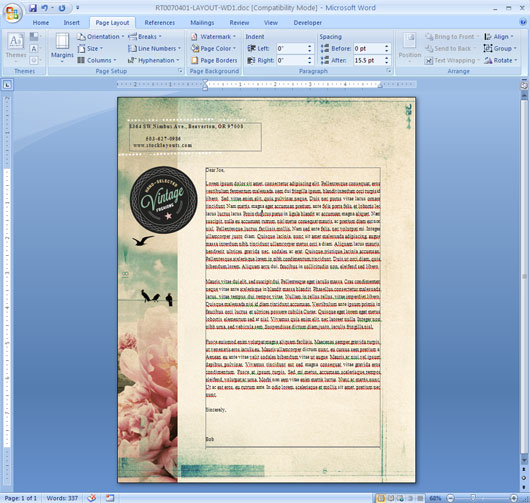
3. Cut and paste the letterhead graphics into the header
- Select all of the graphics.
- Right click on the graphics and navigate to Grouping > Group.
- Right click on the graphics and select Cut.
- On the Insert tab, select Header.
- Insert a Blank header.
- Paste the graphics into the document.
- Click Close Header and Footer.
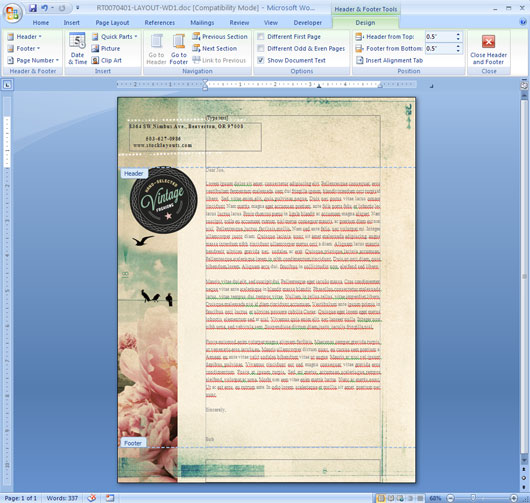
The graphics will appear grayed out
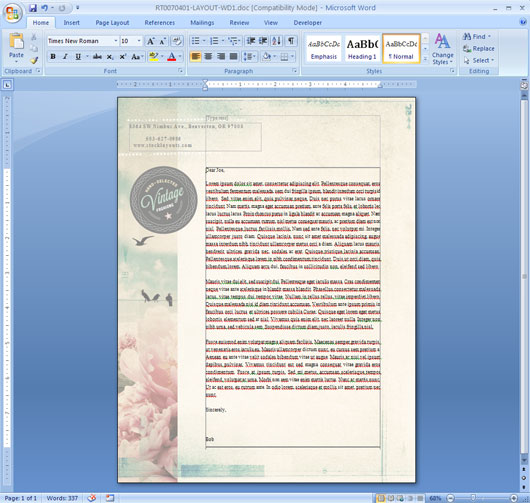
Your letterhead will now repeat on the background of any new pages added to the document
Graphic Design Resources
Watch this helpful video for tips on working with graphics in Microsoft Word.
View ready-made letterhead design templates from StockLayouts.
Try this free business letterhead template to see how easy templates are to customize.